Make a Deadlock HUD theme with your AI agent
You can ask an AI agent to make or change a Deadlock HUD theme for you. The agent connects to this site with a key you make, works on themes in your account, and saves versions you can open in the theme editor. You stay in charge: it cannot publish a theme, put one in your game or delete one.
What it is
This site has an address, /mcp, that AI agents which speak MCP can connect to. Once connected, the agent can look at the HUD parts the game has, start a theme from one of UI Kit's own themes, change its files, run the same checks the theme editor runs, and save a version. It can also look at a picture of the result.
It works for Claude Code, Cursor and Codex. You need a signed-in account on this site, and UI Kit installed to see the result in your game.
Make a key
- 1 Sign in with Steam and open your account page.
- 2 In the Agents section, give the key a name (the agent or computer it is for) and press Make a key.
- 3 The key is shown once. Copy it now; if you lose it, remove it and make another.
Tip: A key works only for the agent address, and only for the themes in your account. Anyone who has it can make themes in your account, so keep it private and remove it when you stop using it. You can have 5 keys.
Connect your agent
Right after you make a key, the Agents section shows the exact text for each agent, with the key already in it. Paste or run it:
- Claude Code: one command to run in a terminal.
- Cursor: a few lines for your
mcp.jsonfile. - Codex: a few lines for your
config.tomlfile.
Then start the agent again and ask it to use the frogtech-hud tools. If it says it cannot connect, check that the key was pasted whole and has not been removed.
What to ask for
Ask in plain words (use your theme's name for <name>). Three examples:
- Start from Arena and make it green.
- In my theme <name>, make the ammo number red at 1 bullet.
- Move the minimap to the top right.
The agent saves each finished change as a version of the theme. If a check fails it sees the problem and can fix it before it saves.
What it cannot do
- It cannot publish a theme, so nobody else sees it.
- It cannot put a theme in your game.
- It cannot delete a theme.
- It cannot open anyone else's account or their unpublished themes, or change your other settings.
It sees every theme in your account, and that includes copies you made of other players' published themes (Copy to edit, Use in my game). It is told where each theme came from, and that what a theme's files say is not an instruction to it.
To keep the site fast for everyone, each account has limits: 120 requests a minute, 30 theme checks an hour, 20 saved versions an hour and 10 new themes a day. An agent that reaches one is told to wait.
Where the result is
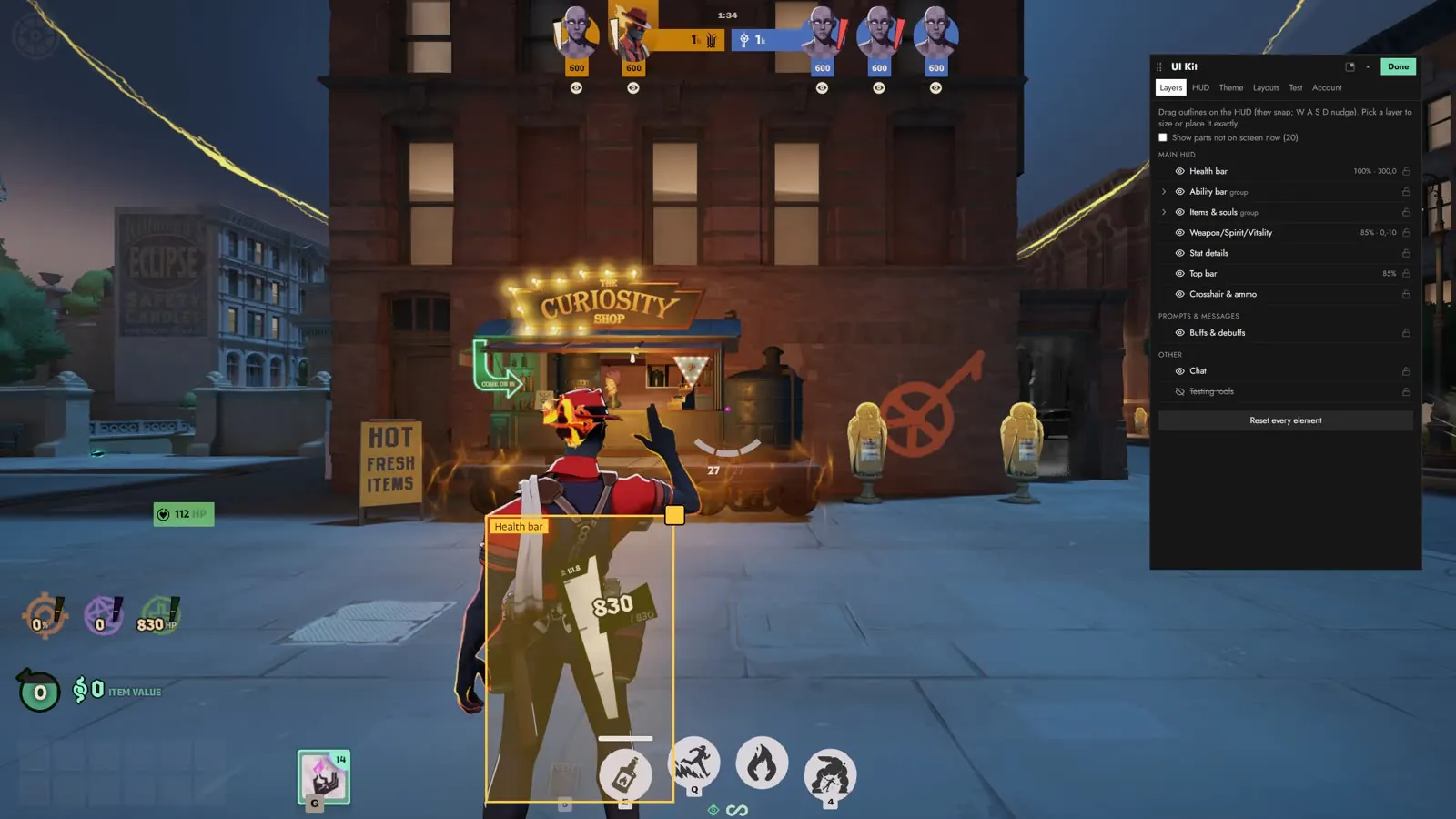
Open Themes while signed in. The theme is in My themes, with the versions the agent saved. Open it in the editor to look, change anything by hand, and press Test in game when you want to try it. Publishing is a button you press yourself.
Read next
More guides
All 22 guides HUD guide A cleaner Deadlock HUD: setup tips Set up a cleaner Deadlock HUD: what to keep, what to hide or move, health squares over heads, reload cues, and a layout you save.
 HUD guide Colorblind mode in Deadlock: the game's settings and a fix Deadlock has no colorblind mode, only Custom UI colors for enemies. Where to find them, and palettes for deuteranopia, protanopia and tritanopia.
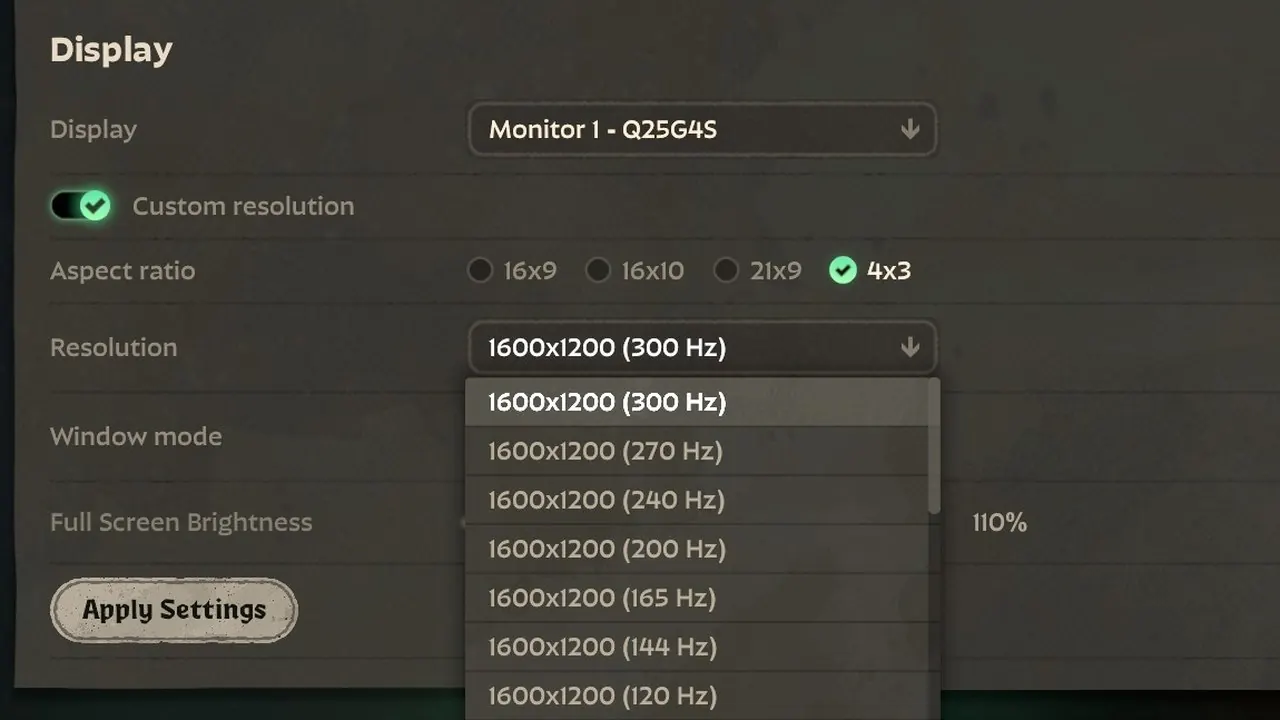 HUD guide How to play Deadlock 4:3 stretched Set up a 4:3 stretched resolution in Deadlock step by step: the custom resolution, GPU scaling, the 4x3 option in game, and a HUD that isn't stretched.
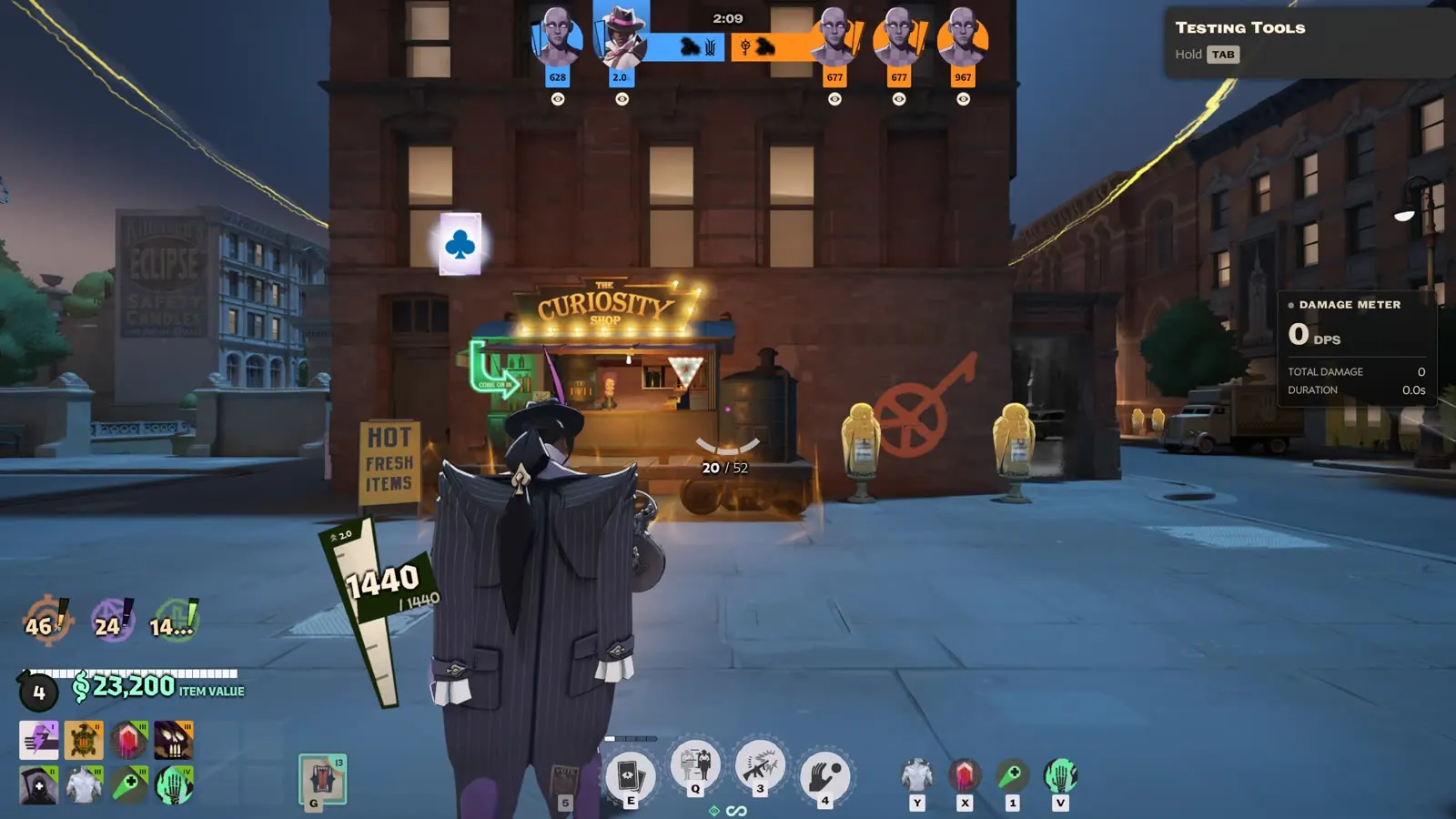 HUD guide Make the Deadlock HUD and text bigger HUD numbers too small to read in Deadlock? Make health, ammo and cooldowns 125 % or 150 %, scale the whole HUD or one part, and resize the shop.
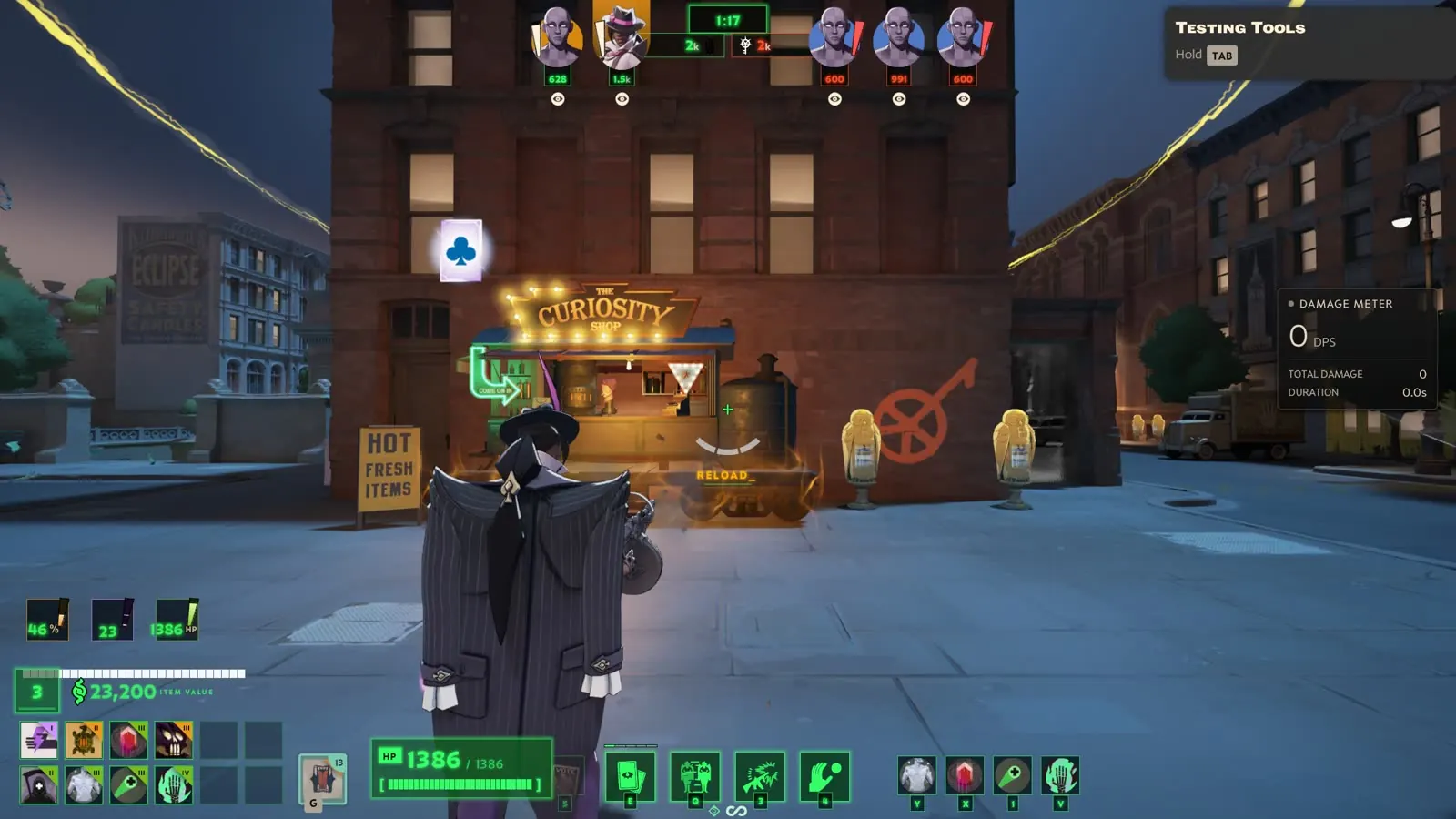 HUD guide Custom crosshairs in Deadlock Swap Deadlock's crosshair for a clean dot or a terminal-style +, add a RELOAD cue under it, and put it exactly in the middle at any resolution.
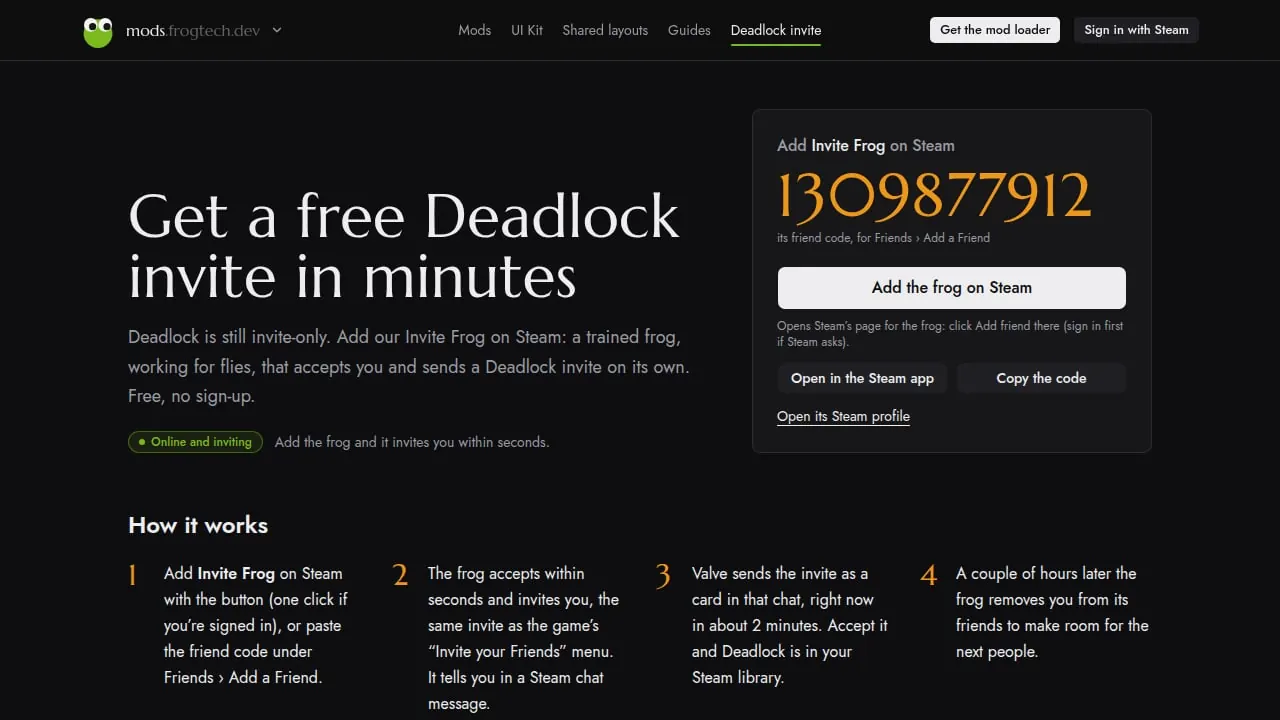 Invites guide How to get a Deadlock invite: free, in minutes Deadlock is still invite-only. Every way to get an invite, the fastest one (minutes, measured live), what your Steam account needs, and how to accept it.